
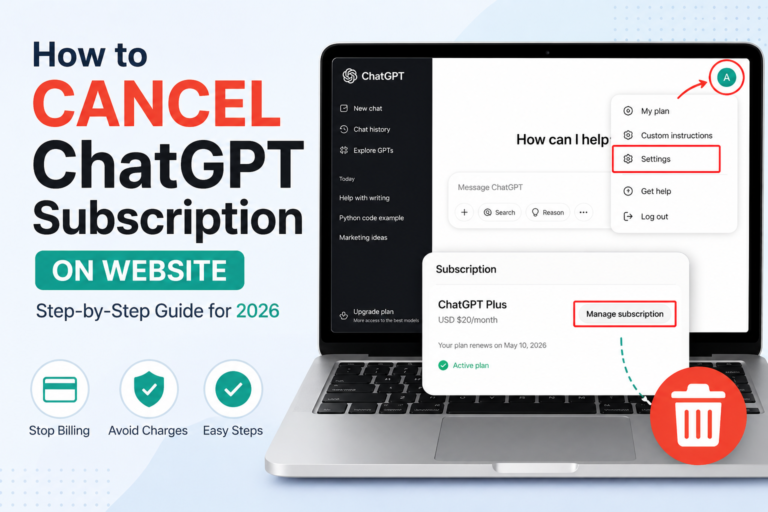

If you’re searching for how to cancel ChatGPT subscription on website, you probably want one thing: to stop the billing without wasting time. Here’s the quick answer: log in to ChatGPT, go to Settings, open My Plan or Account, click Manage Subscription, then press Cancel. Done.
But here’s the thing… people still get stuck.
I’ve helped friends, clients, and even my own team with this. And almost whenever, something goes wrong. The button is missing. The wrong account is logged in. Or worse, they think they canceled, but charges still come. That’s frustrating. So let’s break it down properly, step by step, with real-life clarity.
Quick Steps: How to Cancel ChatGPT Subscription on Website
Let’s keep it simple.
Follow these steps carefully:
- Open ChatGPT and log in to your account
- Look at the bottom-left corner and click your profile icon
- Click Settings
- Go to My Plan or Account
- Click Manage Subscription
- A billing page will open
- Click Cancel Subscription and confirm
That’s it.
What this really means is… once you hit that final confirm button, your subscription stops renewing. But don’t close the page too early. Wait for confirmation.
What Happens After You Cancel
This part confuses people a lot.
Canceling doesn’t stop your access right away. You can still use ChatGPT Plus until your billing date ends.
Let’s say you paid on the 5th. You cancel on the 10th. You still have access until the 5th. No extra charges after that. No hidden fees.
Also:
- Your plan switches back to free
- You won’t lose your chats
- You can subscribe again anytime
From my experience, people panic when they still see Plus features after canceling. Relax. That’s normal.
Why You Can’t Cancel (Common Problems + Fixes)
Now let’s talk about the real pain points.
This is where most users struggle.
1. You Don’t See the Cancel Button
Here’s the thing… if the button isn’t there, you probably didn’t subscribe on the website.
A lot of users sign up using mobile apps. That changes everything.
Fix: Check if you used an iPhone or an Android to subscribe.
2. You’re Using the Wrong Account
This one is very common.
You might have multiple emails. Only one has the paid plan.
Fix: Log out. Try another email. Check your inbox for payment receipts.
3. Billing Page Not Loading
Sometimes clicking “Manage Subscription” doesn’t work.
I’ve seen this happen because of browser issues.
Fix:
- Try Chrome or another browser
- Use incognito mode
- Turn off extensions
4. You Still Got Charged
This one hurts.
In most cases, the user never completed the final step.
What this really means is… clicking “Manage” is not enough. You must confirm cancellation.
Website vs Mobile Subscription (Very Important)
Let’s clear this once and for all.
If you subscribed using:
- ChatGPT website → cancel inside ChatGPT
- iPhone → cancel in Apple subscriptions
- Android → cancel in Google Play
Deleting the app does nothing.
I’ve seen people uninstall the app and assume billing stops. It doesn’t. The payment keeps going in the background.
Pro-Tip: My Personal Take
From my experience, the most serious mistake humans make is speeding. They click a few buttons and assume it’s done. One client I worked with closed the tab right after opening the billing page. He thought that was enough. It wasn’t. He got charged again next month. My rule is simple: never leave until you see a confirmation message and email. If there’s no proof, it’s not canceled.
2026 Update: Small Changes in the Interface
Things look a bit different now.
Earlier, everything was under Account. Now some users see My Plan instead. The layout has changed slightly.
Also, when you click Manage Subscription, you’ll move to a separate billing page. This is normal.
I’ve noticed people get confused here. They think they clicked something wrong. But no, it’s just how billing works now.
Before You Cancel: Save Your Data
Here’s something most people forget.
If you’ve been using ChatGPT for work, you might want to save your chats.
Let’s be real… You don’t want to lose useful prompts or ideas.
Steps are simple:
- Go to Settings
- Open Data Controls
- Request export
You’ll get an email with a download link.
I’ve used this before closing a project account. It saved me hours later.
Should You Cancel or Just Take a Break?
Good question.
Ask yourself:
- Are you using ChatGPT every day?
- Do you need premium features?
- Is it worth the cost right now?
If not, cancel. You can always come back later.
I’ve canceled my own subscription during slow months. Then I reactivated it when needed.
No stress. No loss.
How to Confirm Your Subscription Is Cancelled
Don’t skip this step.
After canceling, check these things:
- Your plan shows free or ends on a specific date
- You received a confirmation email
- No next billing date is visible
If all three look good, you’re safe.
If not, go back and check again.
FAQ: Common Questions
Can I cancel a ChatGPT subscription anytime?
Yes. You can cancel anytime. Access used to continue until your billing period ends.
Will I get a refund after canceling?
In most cases, no. You keep access for the remaining time instead.
What if I don’t see the cancel option?
You likely subscribed through Apple or Google Play. Cancel it there.
Does deleting my account cancel the subscription?
For website subscriptions, yes. For mobile, you still need to cancel through the app store.
Can I subscribe again later?
Yes. You can restart your subscription anytime from your account.
Conclusion: Cancel ChatGPT Subscription the Right Way
Canceling your subscription isn’t hard. But small mistakes can lead to unwanted charges. Here’s the thing: most problems happen when people rush or skip the final confirmation. If you follow the steps properly, check your email, and confirm your status, you’ll avoid all that stress. Simple actions, done carefully, make all the difference.
If you came here searching for how to cancel ChatGPT subscription on website, now you know exactly what to do, and what to avoid. Take one extra minute to double-check everything. That one minute can save you money and frustration later. Keep it simple. Do it right once, and you’re done.



Pingback: AI Chatbot Development Services: Business Guide for 2026 - Innodev Solutions
Pingback: Claude Code vs Codex (2026): Real Cost, Performance & Which One Is Actually Worth It - Innodev Solutions